How to control a robot vacuum cleaner without a Wi-Fi router?! Connecting to the internet without a router!

Hello to all readers of this project! This article will cover a very relevant topic: controlling a robot vacuum cleaner without a Wi-Fi router. I'm often asked whether a Wi-Fi router is necessary to connect and control a robot vacuum cleaner. And what if there's no internet connection in the house or apartment, and therefore no Wi-Fi? So, below, I'll explain how to address this issue to fully utilize all the popular features of a robot vacuum cleaner. So, let's get started!
I won't go into too much detail and will answer the question right away: how to control a robot vacuum cleaner without a Wi-Fi router and home internet connection MaybeIf you don't have a Wi-Fi router, a smartphone with a mobile data connection can work. You'll need two smartphones: one for sharing Wi-Fi in modem mode and one for connecting to the robot vacuum itself. I tried sharing Wi-Fi from one smartphone and then connecting to the robot vacuum in the app through the same smartphone, but it didn't work. My own network doesn't appear in the list of available Wi-Fi networks. I may have done something wrong. If anyone has had success connecting and controlling the robot vacuum from a single smartphone, please share instructions in the comments. As far as I know, this is not possible.
We connect to the robot via two smartphones. On one smartphone, we activate tethering mode. On Android devices, this feature is found in the settings, under "Access point and tethering." Select "Wi-Fi hotspot" from the menu that appears, remember the password, the name of the hotspot, and, of course, activate the Wi-Fi hotspotOn the second smartphone, install the app to control the robot vacuum, log in, and begin the connection process. In my case, this is the robot vacuum I personally use – Dreame Bot L10s UltraDuring the connection process, select the network you want to share with the second smartphone from the available networks and enter the password. Then follow the manufacturer's instructions. In my case, the smartphone connected to the robot without any problems. Start the first cleaning so the robot can build and save a map in its memory. This will allow you to configure everything you need later.


Connecting a robot vacuum cleaner without a router
Now, about the limitations. And here's IMPORTANT: to control a robot vacuum cleaner using two smartphones, the second smartphone must be ALWAYS WORKED in modem modeAccordingly, control is only possible if both the robot and the smartphone you're using to control it are within the coverage area of the access point, which is the second smartphone. As a result, you'll only be able to control the robot vacuum remotely outside your apartment or home if the second smartphone (which broadcasts Wi-Fi) is always close to the robot with an activated access point. But then the question immediately arises: why do this, since one of the robot's main features—remote control—won't work as expected.
The answer is that at the very least, you'll be able to set everything up so you don't need to connect to the robot remotely in the future. For example, by connecting to the robot vacuum via two smartphones, after the map is fully created and saved, you can set virtual walls and no-go zones on the map that the robot shouldn't enter.
And yes, I should point out right away that even if you later disable tethering on the second smartphone, the robot will remember the map and all the set no-go zones and virtual walls without connecting to a hotspot. This means all the settings you save will remain in effect. the first IMPORTANT advantage this connection idea.
The second useful function You can set up a scheduled cleaning schedule by selecting days of the week, adjusting the optimal suction power and water flow level, and even specifying the rooms you want to clean. This is provided, of course, that the robot vacuum's functionality is designed for this. After saving the scheduled cleaning settings, the robot vacuum will be able to clean according to the schedule, AGAIN, even without connecting to a hotspot from a second smartphone. So, once you've set everything up using both smartphones, saved it, and the robot vacuum will clean automatically, you won't even have to turn it on unless necessary. All you have to do is empty the dust bin, filtration system, brushes, and wash the cleaning cloth.
I tested this with my robot vacuum cleaner. I selected two rooms I wanted to clean, set up a virtual wall in one, and a no-go zone in the other. I set up a cleaning schedule with a 30-minute time difference. Then I disabled Wi-Fi on the second smartphone and waited. The robot, without an internet connection, left the station at the scheduled time and cleaned the selected area, recognizing the virtual walls and no-go zones. Here, you can see how it worked:
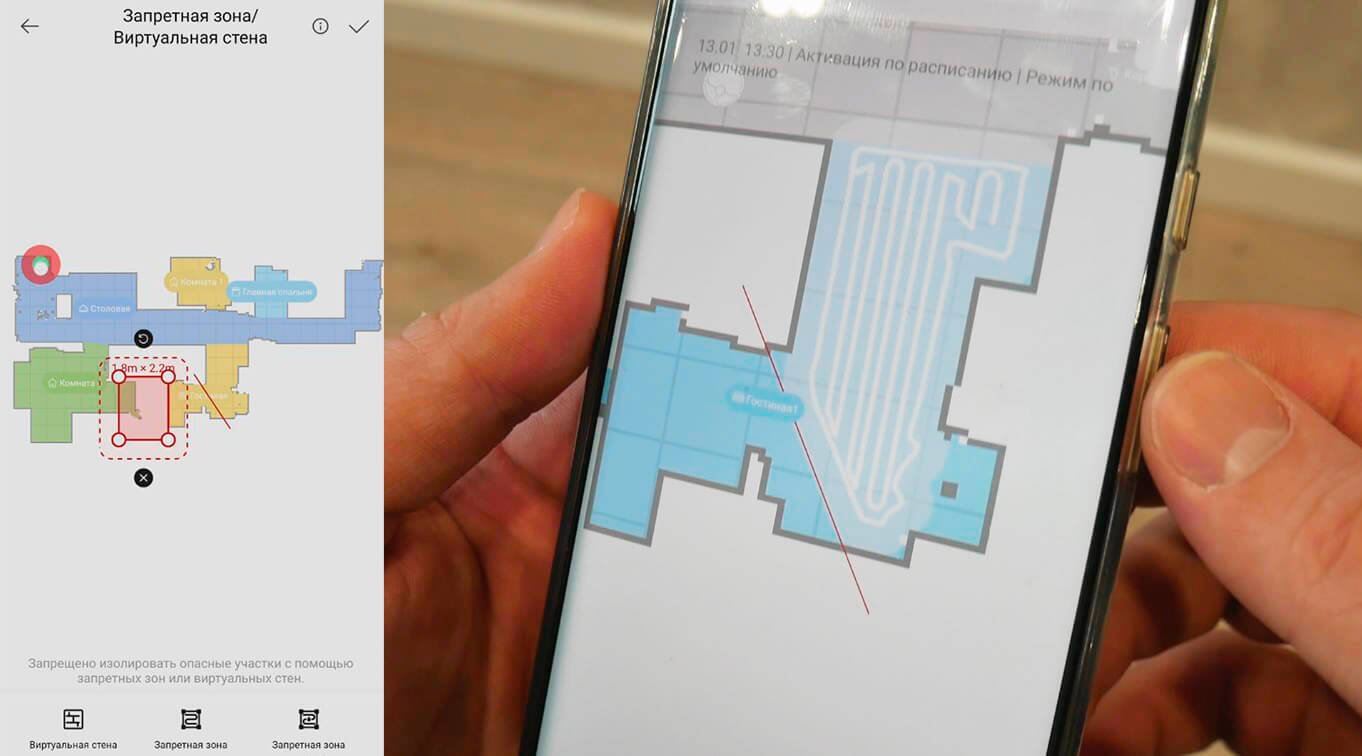
Controlling a robot vacuum cleaner without a router
I even went one step further and reconnected it to the internet via a second smartphone, set up a cleaning schedule, disabled Wi-Fi, and then unplugged the station for 5 minutes, simulating a short-term power outage. What if this somehow affected the robot's internal clock and messed up its timing, as happens with other household appliances, like a microwave or refrigerator? But no, unplugging the station had no effect, and the robot started exactly at the scheduled time, taking into account all the virtual walls and no-go zones. Although, it's possible that if the robot itself runs out of power, which can take anywhere from several hours to a day if it doesn't have a sleep mode, the settings will be reset. But then again, such long-term power outages are extremely rare, and it wouldn't be that difficult to reconfigure all the settings using two smartphones, one of which will be using Wi-Fi.
I'd also like to point out that when you turn on the access point the robot vacuum cleaner is connected to, it comes online within a few seconds and all its functions are activated. So, if more than one person with a smartphone lives in the house, you can always quickly connect to the robot vacuum cleaner without a router and change its settings. And don't forget that you can also turn the robot on using the button on the body. Smartphone functions are primarily used for adjusting cleaning parameters, setting no-go zones, and scheduling cleaning. This method provides all of this.
A detailed video review demonstrating how to operate a robot vacuum cleaner without Wi-Fi:
I'd like to conclude this review on this note. If you have any questions, please ask them in the comments. If you have any different experiences connecting the robot to a smartphone without a Wi-Fi router, please share them in the comments. It would also be helpful if you left a review to let me know if you were able to connect the robot according to my instructions, including your robot vacuum model. Good luck everyone! Bye!
Could you please tell me if I can connect the Okami U100 Plus robot vacuum cleaner to two smartphones? There's no internet (wired) at home. Thank you for your response.
I think it will work.
You can use the app fully with just one smartphone and no Wi-Fi in your apartment! I've already set it all up and am using it successfully!
Oh, please tell me more about this method)
Yes, I can also control the iPlus L100 robot vacuum cleaner from a single smartphone. To connect to the Smart Life app, you do need a second smartphone (mine didn't even have a SIM card), on which the app is initially installed. After registering in the app and adding a device (the vacuum cleaner), the same app is installed on the first smartphone, which shares the mobile internet connection. Log in to the app using the username and password you specified during registration. Then, full control of the devices is handled through the access point from the first smartphone, and the second one can simply be turned off. No home Wi-Fi connection from a router is required.
Hello, I connected perfectly without any problems, but after a while the connection disappears. What's wrong? I tried changing the settings several times, but the connection disappears.
Thank you! You just saved my life! I bought it for my parents, but they don't have internet... and that's it.
It turns out you can still set everything up!, even without home internet.