Chinese Dreame robot vacuum cleaners: bypassing regional blocking and installing Russian language
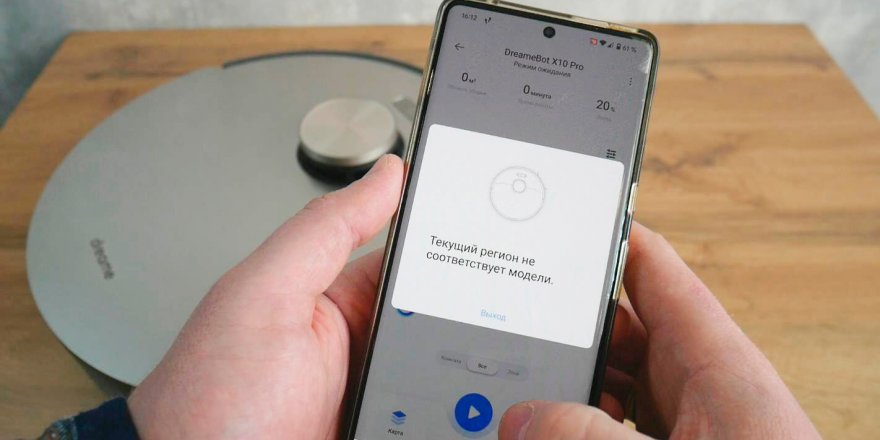
Greetings to all readers of robovac.washerhouse.com! In this review, I'll tell you how to bypass the regional lock on Chinese Dreame robot vacuum cleaners, as well as set their voice notifications to Russian (as the robots speak Chinese or English out of the box). Since 2022, Dreame has increased protection against using Chinese versions of its robots outside of China, both when controlled via Mi Home and through the proprietary Dreamehome app. Accordingly, no matter which region you select, the system detects your actual location, and if you're not in China, you won't be able to access the settings section. A pop-up window displays the notification "The current region does not match the model," and access to all features is completely blocked. There are several solutions online. I'll share the simplest and still-functional way to bypass the regional lock on Dreame robot vacuum cleaners. I personally use this method, as I'm the proud owner of a flagship model. Dreame Bot X10 Pro, which I highly recommend paying attention to. So, let's get to the analysis!
Bypassing the blocking
Let's start with Dreamehome, as this app offers the ability to remotely connect to the robot's camera, and generally delivers updates and fixes bugs faster. First, install the app. During installation, select the Russia region and complete the simple phone number authorization. After successful authorization, go to settings and change the region to China (Chinese mainland 86), as you have a Chinese version of the robot vacuum and it won't be listed as available in Russia. Reset the Wi-Fi on the robot vacuum and connect it to the network as usual. There shouldn't be any issues at this point; the app should automatically find the robot if it's nearby.
Once the robot vacuum is connected to the network, two main functions will appear in the quick access menu: automatic cleaning of the entire available area and forced return to the charging base. In this quick access menu, the buttons are always active, allowing you to start the robot without any problems and without any errors. However, if you click on the image of the robot itself to access its settings or click the "Go to device" button, a notification will appear stating "The current region does not match the model."
And here, in fact, is the solution, which at the moment (May 10, 2023), works on both iOS and Android, on the latest versions of Dreamehome software.
As confirmation, here's a screenshot showing active functions in the settings section on iOS and Draemehome, model Dreame Bot X10 Pro:
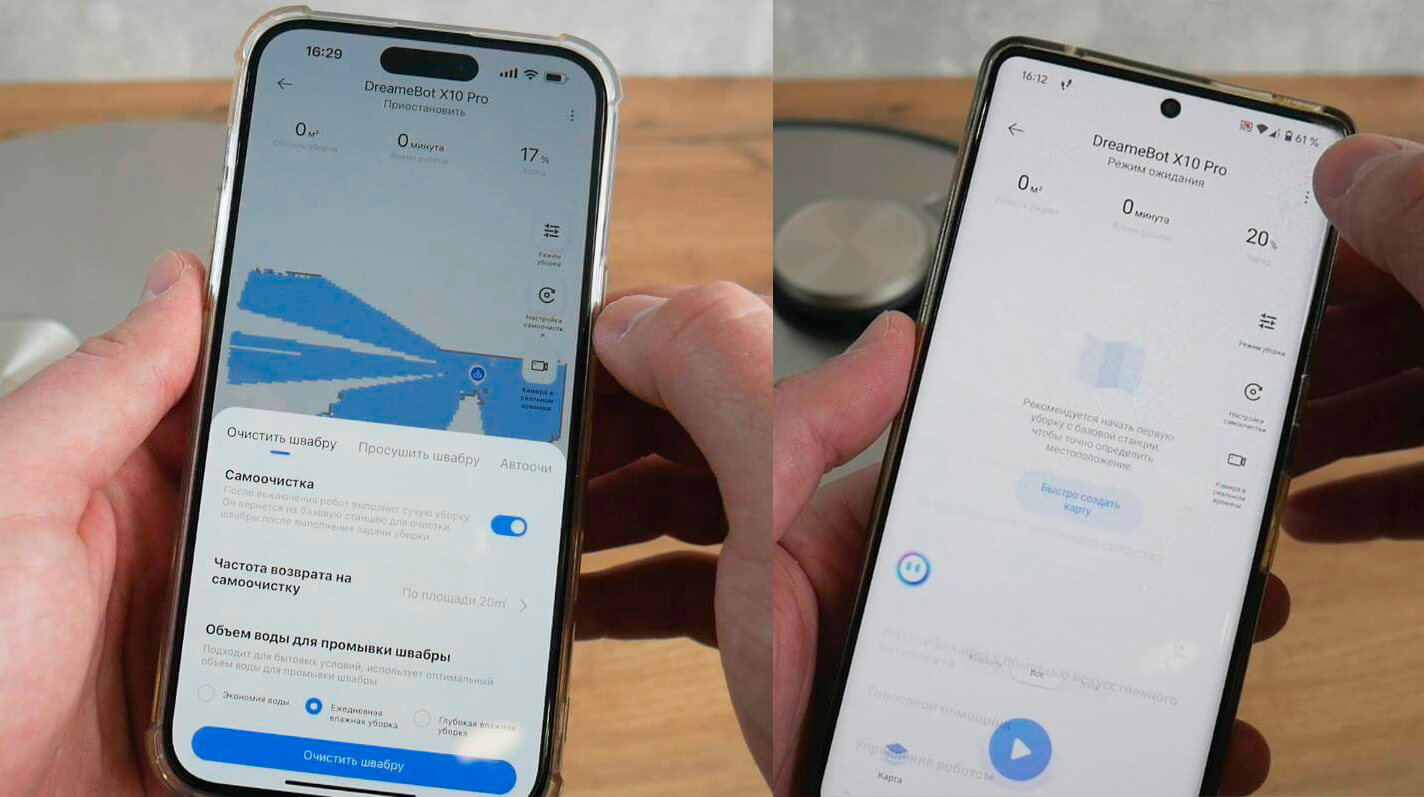
Managing Chinese Dreame on iOS and Android
Before going to Settings, enable Airplane Mode on your smartphone. Then, tap the robot icon and navigate to the new section. You can immediately disable Airplane Mode. Wi-Fi will connect and all settings will become active (you'll need to wait 10-15 seconds). This means that while the app is checking your region, no data is transmitted, and the protection is effectively disabled.
In the settings section, you can adjust all the necessary parameters: change room boundaries, set virtual walls and no-go zones, adjust suction power and wipe wetting level, configure station settings, and schedule cleaning. In other words, all the functionality is fully accessible. However, there's a catch. Regional protection is activated not only when you access the settings from the quick access menu but also when you navigate between sections within. So, if you enter the map editor, change room boundaries, and then navigate to another section, a notification will appear that says "The current region does not match the model." Return to the quick access menu, enable airplane mode, go to settings, disable airplane mode, and when the app becomes active, navigate to the desired new section.
Yes, INCONVENIENT! But you are buying a robot vacuum cleaner designed FOR THE CHINESE MARKET. And you are buying SIGNIFICANTLY CHEAPER, what the global version will cost. For comparison, the difference between the global Dreame Bot L10s Ultra The price of the Dreame Bot S10 (87.5-1100) and the Chinese version (41-500) ranges from $45 to $650. Is it worth saving and tinkering with the setup a bit? It's up to you!
Another point: these airplane mode manipulations will essentially only need to be done once. After the robot vacuum cleaner has built a map and saved it in its memory, you only need to adjust the cleaning parameters to your needs once, spending 20-30 minutes at most on all the "resets." After that, it's just a matter of pressing the "Start" button from the quick access menu, as I do, for example. Therefore, with regular use, you won't experience any discomfort when using the robot vacuum cleaner.
For Mi Home, follow the same procedure. Connect the robot vacuum to the China network and enable airplane mode before going to the settings section. Once there, disable airplane mode and wait 10-15 seconds, after which the app will connect to the network and all functions will become active.
I'd like to thank Maxim Grigorievich Shevchuk for his assistance in preparing this manual. He's a trusted seller of the Dreame Bot X10 Pro, and I actually ordered the robot vacuum from him for review. He's trustworthy, and from my own experience, I can say he provides excellent after-sales support. He was very responsive during setup and testing, and explained everything in detail. Remote home monitoring works the same way, but there are some slight differences in the smartphone operating system. On Android, go to the "Real-time Camera" section from the quick access menu. As soon as the new section starts loading, quickly enable airplane mode (you need to seize the moment and do it quickly), then wait a few seconds and disable it. All that's left to do is enter the security code, and the active camera will turn on, streaming the image to your smartphone. Incidentally, because the app runs on Chinese servers, there's a slight delay in the image, but it's not critical. On iOS, when you go to the "Live Camera" section, the new section loads much faster and immediately a menu for entering a security password appears, with a pop-up notification overlaying it: "The current region does not match the model." So, there's a trick here. You can still enter the security code; the keyboard is active. So, enter the code despite the notification, and the camera will turn on. You don't even need to turn on airplane mode. Regarding setting the Russian language on the Chinese Dreame robot vacuum cleaner, here's the easiest way for iOS and Android: That's it! Your robot vacuum cleaner speaks Russian! By the way, it's really cool that you can set the Russian language using these instructions. Then, using any other settings, connect the robot to Dreamehome, and the Russian language will remain set. Very convenient! The second method currently only works for Android smartphones: download Mi Home from vevs and control the robot through that app. Installation is easy, and the 4pda forum explains everything in detail. For now, I prefer the first method. I've looked at the simplest and most effective way to bypass regional locks on the Chinese Dreame robot vacuum. It works for now, but it's likely that Dreame's software security will be improved, and eventually, we'll be able to disable this feature. I'm confident that our "experts" will find an alternative way to bypass the lock. For example, installing an "outdated" version of Mi Home or DreameHome is still a common practice. You can download the APK file from third-party websites. If the method of bypassing the blocking via airplane mode (disabling the internet) no longer works, we will look into other options and update this article. Also, please share your experience with how you resolved the regional blocking issue. Many will be interested to hear about it! So, we've covered all the effective methods for bypassing regional blocking on Chinese Dreame robot vacuums. As you can see, there's nothing complicated about it, and the issue is solvable. At least for now. The benefits of purchasing Chinese versions can truly be significant and, for many, justified. If you have any questions, ask them in the comments! Happy shopping, everyone. Bye!Remote home monitoring
Setting the Russian language for voice notifications
Other ways to bypass blocking

Hello, new firmware has just been released for the x10 Pro. After the update, the option to bypass the lock in the Dreamy app via airplane mode no longer works. You can't access the settings after disabling airplane mode. So, I don't recommend updating the vacuum. I use it on my iPhone. Now I only use Mi Home, via airplane mode.
Excellent, you explained all the settings in accessible language! Thank you!
It won't connect to the network. The first two options are OK. It doesn't want to connect.
Unfortunately, it doesn't work in your example.
I have a Dreamebot s10 pro plus, it's Chinese, straight from China.
Not in Dream Home not in Mihom, it doesn't work, I would be very grateful if you show it on your channel
It's possible that the Chinese have already figured it out and closed the loophole.
I would be grateful for your help, your subscriber
Good afternoon. Were you able to find a solution? I have a similar problem.
Hey guys, I have the same problem. I ordered directly from Ali. How did you get around the region issue? Have you tried reflashing the firmware?
After updating the dreamehome app, the method does not work.
I couldn't connect to either Dreame Home or Mi Home using the specified method. Model: W10 Pro.
Mindsolo made a new workaround there. It works for me on my S10 Pro and X20 Pro Plus. The instructions are on his website.
Hello, I bought a Dreame Z10 Pro. Everything works fine, but when I add a robot vacuum in the Mi Home app, the controls are all in English, while in your pictures they're all in Russian. Please help me change it. Does it connect to an iPhone? Does it work with Siri?
In the Dreamehome app, when you change the region to China, the app logs you out and asks you to sign in again, but this time with a Chinese number. There's no point in saying anything further.
Good afternoon!
The Polisos Dream L10 Pro Ultra is loading, but the robot doesn't load the map; there simply isn't one. What can I do?