How to connect a Xiaomi robot vacuum cleaner to Wi-Fi: step-by-step instructions with video
Nowadays, robot vacuum cleaners not only offer excellent functionality, but most also have the ability to connect to a smartphone via Wi-Fi. Connecting to a phone or tablet significantly expands the robot's capabilities and allows the user to fully enjoy the variety of available features. For example, the app allows you to set a cleaning schedule, track the robot's movements, battery life, and even limit the cleaning area. In this article, we'll walk you through the steps for connecting a Xiaomi robot vacuum cleaner to Wi-Fi for the first time. In addition to the step-by-step instructions, we highly recommend watching the visual video review at the end of the article.
Establishing interaction with the charging base
Before you sync your robot vacuum cleaner with your mobile device, you need to set up communication between the device and the base station. To do this, follow these steps:
- Connect the charging base to the electrical network and remove the excess cable to the special socket.
- Make sure the docking station is installed correctly: there should be 100 centimeters of free space in front of the charging base, and 50 centimeters on the left and right sides. If the rear contacts are installed correctly, the light on the top panel will start blinking.
- If the light stays on steadily and doesn't blink, the battery is fully charged. To continue using the Xiaomi robot vacuum, press the start button.
- If the light bulb is white, the battery charge is sufficient, yellow - up to 50%, red - less than 20%.
It's also important to remember that before using the robot for the first time, you should remove any cables or small objects from the floor so that they don't interfere with the movement of your smart vacuum cleaner.
Next, we'll look at how to connect a Xiaomi robot vacuum cleaner to the Mi Home app on Android and iOS step by step.
Connecting to Wi-Fi
If the smartphone is on Android
Before connecting a robot vacuum cleaner to a mobile device, you need to activate Wi-Fi, GPS, and Bluetooth, and turn on the Xiaomi robot vacuum cleaner itself. After that, download the proprietary Mi Home app for Android, which is available on all major software platforms.
The algorithm for connecting a Xiaomi robot vacuum cleaner is as follows:
- In the application, you need to register or log in to an existing account by clicking the "Login" button.
- After successfully launching the application, you'll need to select a server (region). If possible, it's best to choose a server in Europe, Singapore, or the United States. On a Chinese server, some options may be blocked and unavailable.
- Make sure your internet signal is stable. A poor connection may prevent the robot vacuum from functioning properly, as it needs to be online to function properly.
- On the main screen, select "Add device." Find your device in the suggested list. If your Xiaomi model isn't listed, you'll need to add your robot vacuum manually.
- After this, you need to reset the Wi-Fi settings on the robot vacuum cleaner by simultaneously holding down two mechanical buttons on the body for 2-3 seconds.
- To complete the process and connect the vacuum, you'll need to enter the Wi-Fi network name and password. Next, enter a name for your robot.
- If everything is done correctly, the icon of your Xiaomi model will appear on the main screen of the mobile application.
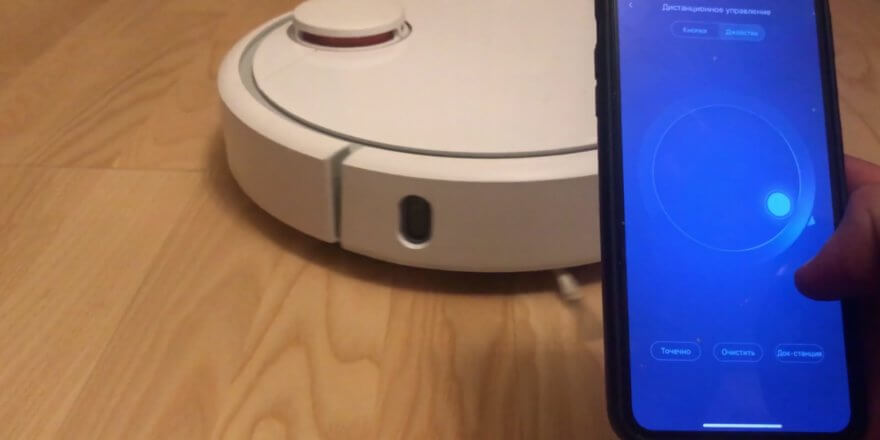
Thus, via a smartphone app, each user will be able to select the Xiaomi operating mode, set up a cleaning schedule, send the device to the charging station, manually control movement, and monitor the parameters and wear of the robot vacuum cleaner's components.
How to connect Xiaomi to iPhone
To connect a Xiaomi robot vacuum cleaner to an iPhone, you need to download the Mi Home app from the App Store. Otherwise, the steps for iOS are the same as for Android. However, one small issue may arise when trying to connect your smartphone to the Xiaomi robot vacuum cleaner. This issue occurs because the iPhone is unable to recognize the Xiaomi vacuum cleaner on its own. To resolve this issue and connect the device, you will need to change the region. To do this, go to the "Profile" section, then the "Settings" subsection, and tap "Region." Here, select either India or China.
Possible connection difficulties
Connecting a Xiaomi robot vacuum cleaner shouldn't be too difficult; the entire process is generally intuitive. However, in practice, users may occasionally encounter various difficulties. Let's look at how to handle such situations.
Wi-Fi problems
To connect a robot vacuum cleaner without a Wi-Fi network, you can try changing the DNS address. To do this, you'll need:
- go to network settings;
- open an active connection and go to the “Network Properties” section;
- Go to “Edit network” — “Advanced” — “Custom” and change the DNS address in the page that opens from the set one to 114.114.114.114.
But don't get rid of the old DNS address; it's better to write it down on a piece of paper and, once your Xiaomi successfully connects to Wi-Fi, enter this address back.
Problems with the application
Sometimes, connecting the robot vacuum to Wi-Fi is impossible because Mi Home won't log you in. This may be due to servers that, for some reason, aren't accepting outgoing traffic. Try disguising outgoing traffic as a different country using a VPN:
- Install the VPN Master program;
- launch this program and click on the extreme icon in the upper right corner of the screen;
- select the name of another country from which the traffic will supposedly come (it is recommended to choose Germany or Singapore);
- Please re-enter your details to complete authorization.
Once you have finished using Xiaomi VPN Master, you should disconnect it by clicking the “Disconnect” button.
You may also encounter issues with incorrect login and password entry, incorrect region selection, failure to install suggested updates, or problems with the Xiaomi charging base. You can easily troubleshoot these issues yourself, after which you'll be sure to successfully connect your Xiaomi robot vacuum to your phone.
Finally, we recommend watching a video overview of the steps for connecting the robot to a Wi-Fi network:
Related materials:


I renamed the network name, removing the slashes and dashes. After that, the robot vacuum connected to the network and was added to Mi Home.
I bought a Rus S6 and nothing helps... I'm suffering... I'll take it back to the store.
Thank you so much!!!! We spent three days trying, even bought a new Wi-Fi. It turns out the slash needs to be removed from the network name.
Hello.
Roborock S5 Max.
I tried all possible routers, it doesn’t connect to the phone.
I tried my friend's iPhone and it worked.
I have a OnePlus 5. Apparently there's a problem with the phone. How can I fix it?
Thank you. I couldn't connect to my Waffle for a long time. Changing the DNS didn't help. I set the region to Germany and connected immediately. Then I set the region to Russia. It took longer to connect than to Germany, but I finally found a connection.
Hello, I connected a robot vacuum cleaner via Wi-Fi. I wanted to ask if the Wi-Fi indicator should be on all the time or should it be turned off at night?
Good afternoon
I live in Austria, and my Mi Robot Vacuum-Mop P vacuum cleaner was delivered from Germany. I can't connect it to my iPhone. After charging, it shows it's trying to connect to WiFi (blinking white). I entered the name myself, but it's not listed among Xiaomi models! BlueTooth doesn't detect it on any of my three Apple devices or my Surface laptop running Windows 10. I've enabled WiFi and BlueTooth, but what about GPS? Our WiFi is WLAN, with frequencies of 5Hz and 2.4Hz. Help!
He needs a 2.4 GHz network.
Hello! Could you please tell me the settings on one phone were reset, so I tried reconnecting it to another phone. It says your vacuum cleaner is configured for a different phone. On the other phone, it's not recognizing the Wi-Fi connection and the password protection is weak. How can I reset the settings?
Hello, could you please tell me if a separate Wi-Fi router or the smartphone's Wi-Fi is needed to connect a vacuum cleaner to an Android smartphone? Thank you.
A router is needed!
When connecting my phone to the vacuum, it doesn't see the last Wi-Fi device on the list. I've tried it on two iPhones. Is there anything I can do or should I return it?
I'm having trouble connecting to Wi-Fi. I can't find my robot in the list of suggested devices. I have a Xiaomi Roborock E5 robot vacuum cleaner. I only have the Roborock E series. But after selecting this vacuum, nothing happens. My phone is a Samsung Galaxy A9.
Thanks to the comment above, it helped me set the 2.4 network without spaces or slashes and make the password only letters and numbers. Xiaomi Vacuum-Mop P
The device is offline. How can I fix this error?
Hello, how can I change my network connection if the name and password have changed?
Everywhere they write that everything starts with Add a device, but it’s already added, I don’t want to delete it, since the robot has already created a map, registered in rooms and scenarios, and so on.